
Payouts - RSA Key Registration
Payouts allow customers to withdraw funds from the merchant bank accounts — as such, the ability to create payouts needs rigorous security. Yaspa provides this security using asymmetric RSA encryption keys to sign and verify messages.
Merchants will be expected to sign all payout requests using the techniques shown here Instant Payouts - Signing Payout Instructions. Before this can be done, RSA keys need to be generated by the merchant and then the public key needs to be submitted to Yaspa via the admin dashboard.
Understanding RSA Keys
RSA keys can easily be generated from the command line of Linux, Macs, or Windows (via PowerShell). Two keys will be generated:
Private Key – This key is used by the merchant server to sign payout requests, proving they originated from the merchant server. This key MUST be kept safe by the merchant. This key allows API calls to be made to withdraw money, so good security procedures are paramount.
Public RSA Key – This key will be sent to Yaspa and can be used to verify any message signed by the private key is valid. Public keys can be shared and only provide Yaspa with the ability to verify payout requests originated from an entity with the private key — the merchant server.
Creating RSA Keys
The following recipe shows the commands to create the keys. These will exist as files on your filesystem
Registering the Public RSA Key with Yaspa
The following process details how the public RSA key generated above is registered with Yaspa via the Admin Dashboard
Step 1: Make sure you have access to the Yaspa Admin Dashboard
A merchant representative who has access to the public RSA key will need to be given access to the Admin Dashboard, this person will need the FINANCE role. Please contact your Integration Manager if you are unclear about this step or any of the following steps.
Step 2: Get a One Time Authentication Token
In the Admin Dashboard click on the Payouts tab. If you see the following screen an Authentication token has not yet been generated for you, please contact the Yaspa onboarding team.
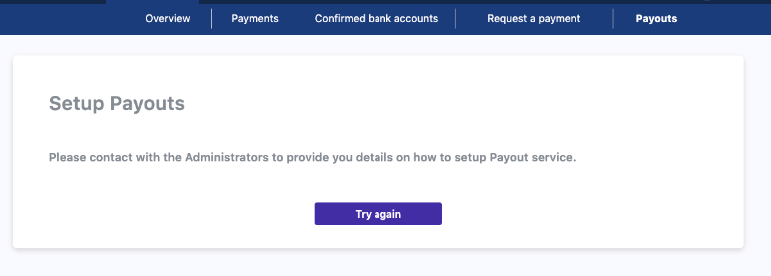
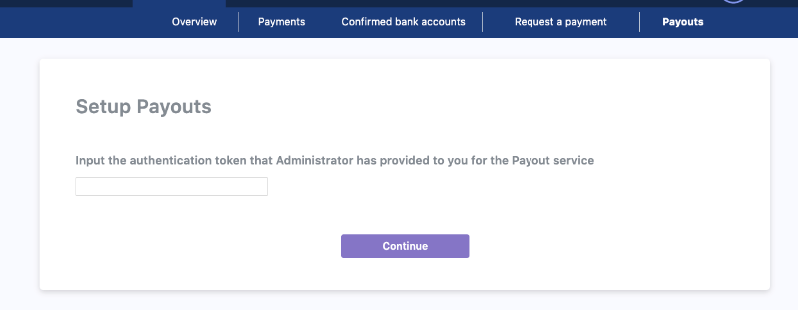
Yaspa will provide your designated member of staff with an authentication token to setup Payouts. This code is a short string which can be entered into the Admin Dashboard.
We’ll provide this token as part of your onboarding. Once you have it, head to the Payouts section of the dashboard and enter the token there.
Step 3: Set Up Google Authenticator
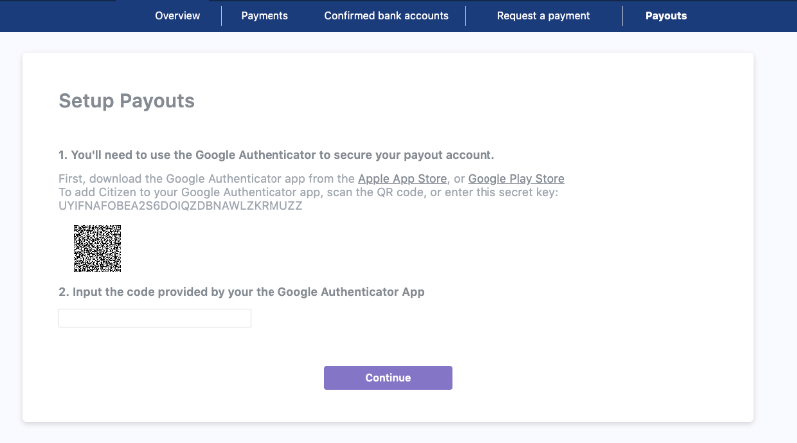
To keep your setup secure, we use Google Authenticator to protect access to your public key settings.
Once your token is submitted, you’ll be prompted to scan a QR code with the Google Authenticator app and enter the generated code.
Step 4: Register Your Public Key
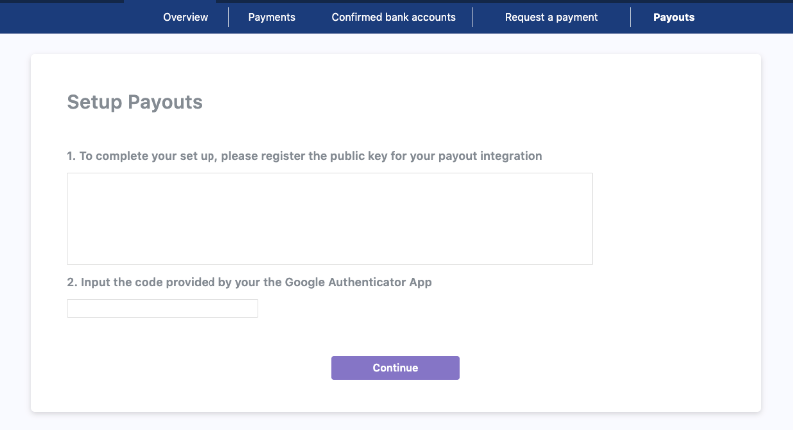
With Google Authenticator set up, you’ll now be able to register the public component of your RSA key. This key is what Yaspa will use to verify the signature on every payout request.
Paste your public key into the field provided and save the changes.
Updated 10 months ago