
Merchant Withdrawal
This only applies when usingVirtual Accounts managed by Yaspa.
Merchant Withdrawals
Merchant Withdrawals are used to move money from your Yaspa virtual account to another bank account. They differ from verified payouts in that the payout bank account does not need to be verified by its owner – its details are instead sent by a signed REST call from the merchant's back end.
Creating Counter Party
The first step to make withdrawals is to create a counter party. This allows your funds to be withdrawn to another bank account. This request is typically created from your back end. The request uses your merchant private API key (from your admin dashboard) and the body must be signed with the signing set as a request header.
Headers
| Header | Description |
|---|---|
| AuthorizationCitizen | Your merchant private API key |
| Signature | Base 64 encoded signature |
| Content-Type | 'application/json' |
Request
| Parameter | Description | Type | Required |
|---|---|---|---|
| customerIdentifier | The internal id you use on your systems to identify your customer | String | Y |
| bankCountry | The jurisdiction of the counter party account. It should follow the country ISO codes. For example, supported countries are [GB], [IE], [NL] | String | Y |
| accountGiro | Payment rail for the counter party bank account. Depending on the currency, it can be either FPS (UK Faster Payments) or SEPA (EU SEPA Inst) | String | Y |
| accountCurrency | Counter party account currency. The supported currencies are "GBP" and "EUR". | String | Y |
| accountName | Account name of the counter party | String | Y |
| accountNumber | For transactions within the UK, the sort code. For EUR, the IBAN of the counter party. | String | Y |
| bankCode | The counter party sort code/BIC | String | Y |
| counterPartyBank | Bank of the counter party. If this account was created via a third party (e.g. OPENPAYD), then this should be set to "OPENPAYD". | String | Y |
| customerType | Type of the counter party. If this account is used for withdrawal in the admin dashboard, this should be set to "CORPORATE". Otherwise, use "RETAIL" for regular payouts | String | Y |
Response
{
  "counterPartyId": "62a5ff6a5410953586eea940",
  "merchantId": "62a325fed1b29b74d10791b9",
  "payoutProviderCustomerId": "7bfe1fb4-70ff-480f-83a1-ef8df3ad4d01",
  "payoutProviderAccountId": "cLJVZ003Q2R2Wnc5cc90ZFdZQ2Z1UT09",
  "customerType": "CORPORATE",
  "customerIdentifier": "1846593725421829",
  "bankCountry": "GB",
  "accountCurrency": "GBP",
  "accountGiro": "FPS",
  "accountNumber": "73200505",
  "bankCode": "231470",
  "accountName": "test Company",
  "merchantBank": "OPENPAYD",
  "counterPartyBank": "OPENPAYD"
}
Doing a Withdrawal
Once you’ve created a counterparty, you’ll be able to perform a withdrawal from your Yaspa virtual account.
To do this, log in to your Yaspa Admin Dashboard, navigate to Balances, select the account you wish to withdraw from, and click the Withdraw button.
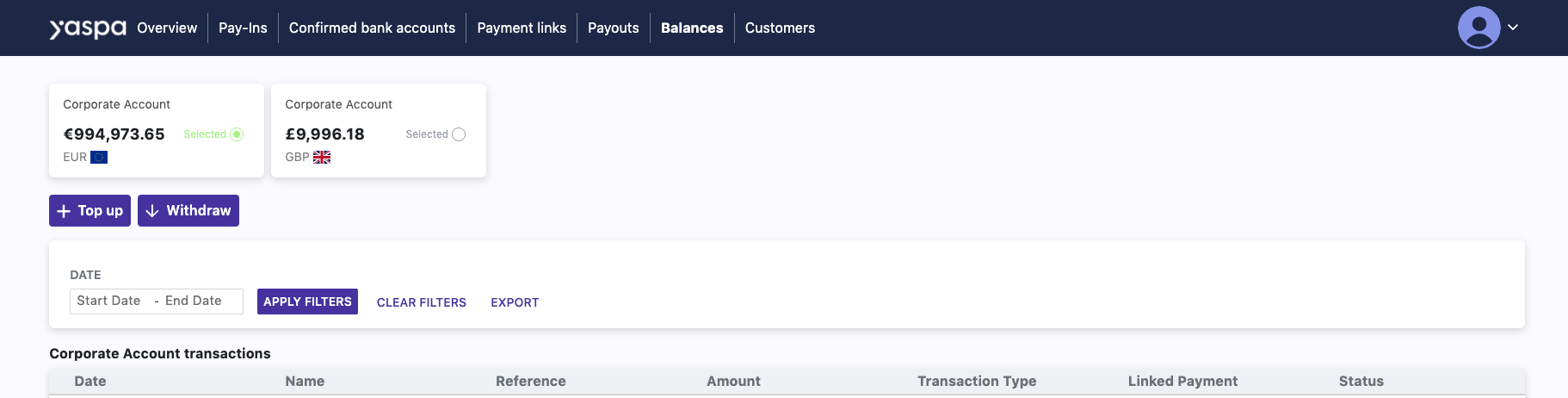
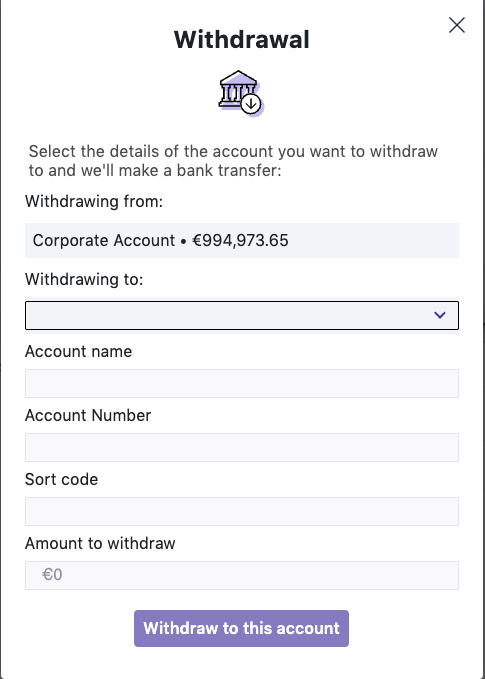
You’ll be presented with a screen where you can select the counterparty you’ve just created from the dropdown menu as the withdrawal destination.
Once you select the counterparty, the required account details will automatically populate based on the information provided during setup.
Enter the amount to withdrawal, and the Withdraw button will become active.
Simply click “Withdraw to this account” to complete the process.
Updated 4 months ago